> ## Documentation Index
> Fetch the complete documentation index at: https://docs.firebender.com/llms.txt
> Use this file to discover all available pages before exploring further.
# Get Started
> Guide to create and manage Firebender business organizations
## Creating a Team
To get started with Firebender for your team, follow the steps below to purchase seats and invite members.
When selecting the Business plan, you can pre-purchase seats for your team members during checkout.
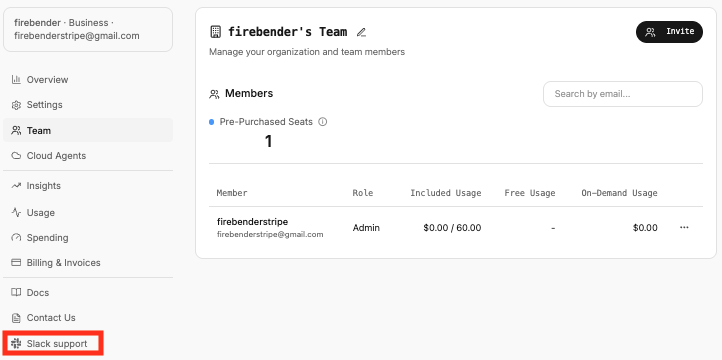
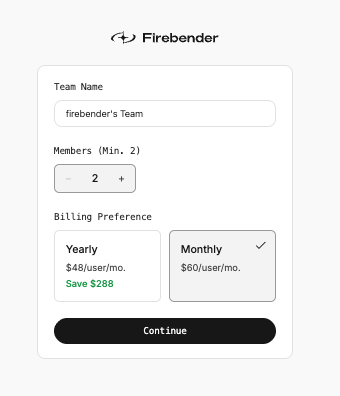 After purchasing, you'll be taken to the Settings page where you can view your team under the **Teams** section.
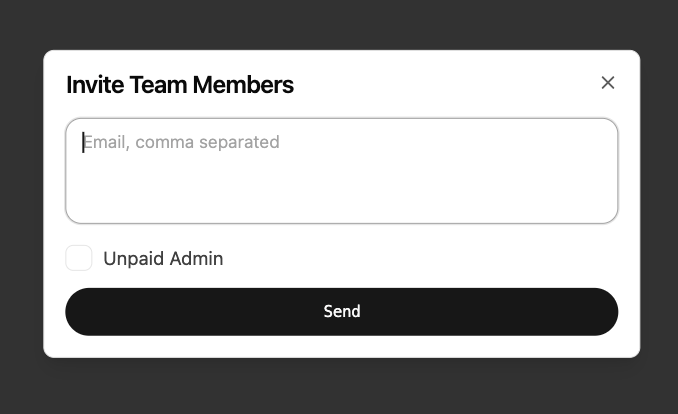
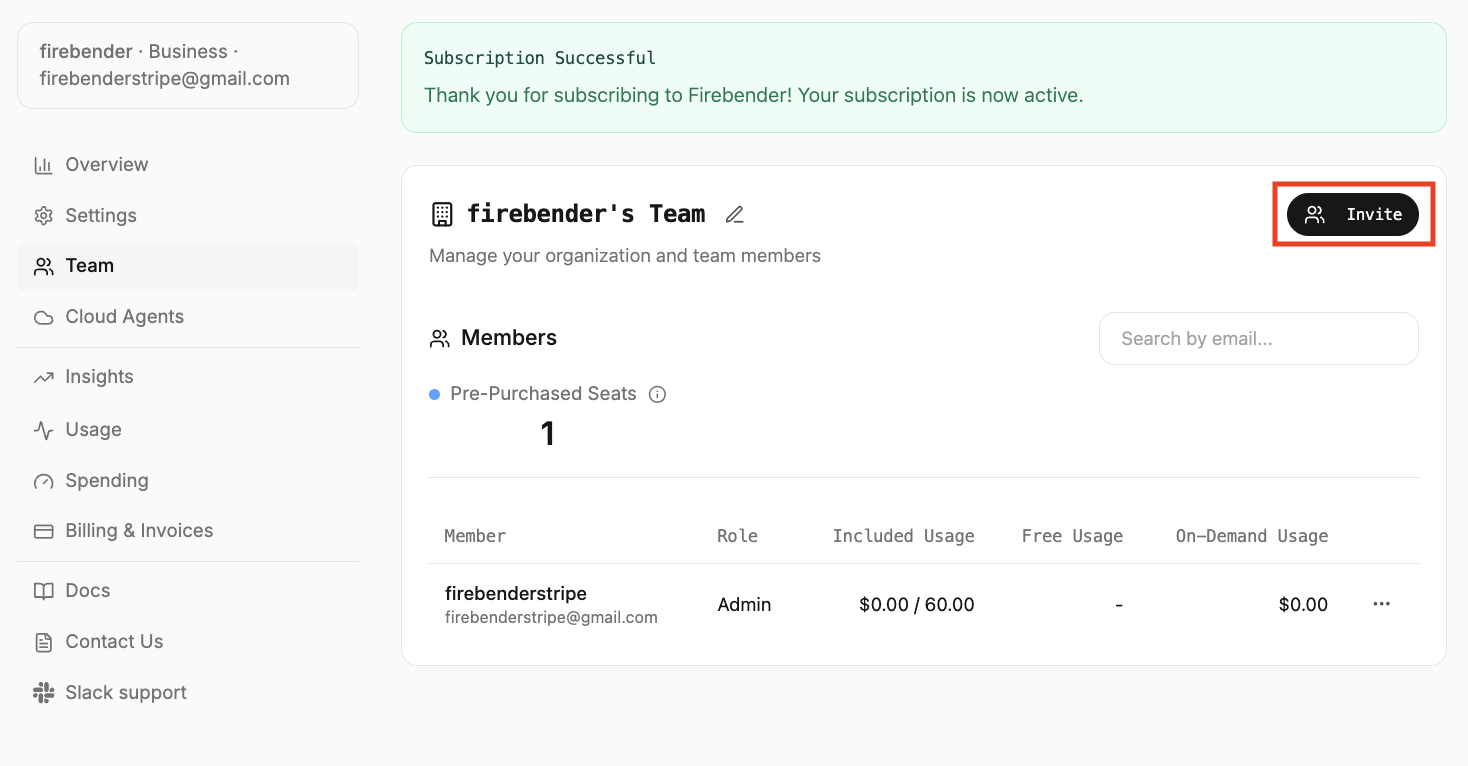 Click **Invite Members** to open the invitation form. Enter the email addresses of team members you want to invite.
All changes to users are prorated, meaning you will only be charged for the time a user has been a member of the team. Prorated charges are applied at the start of the next billing cycle.
Click **Invite Members** to open the invitation form. Enter the email addresses of team members you want to invite.
All changes to users are prorated, meaning you will only be charged for the time a user has been a member of the team. Prorated charges are applied at the start of the next billing cycle.
 For additional security and easy onboarding, you can enable [SSO](/account/business/sso) for your team. When SSO is configured, users who sign in with your SSO provider will automatically be added to your team without needing an invitation.
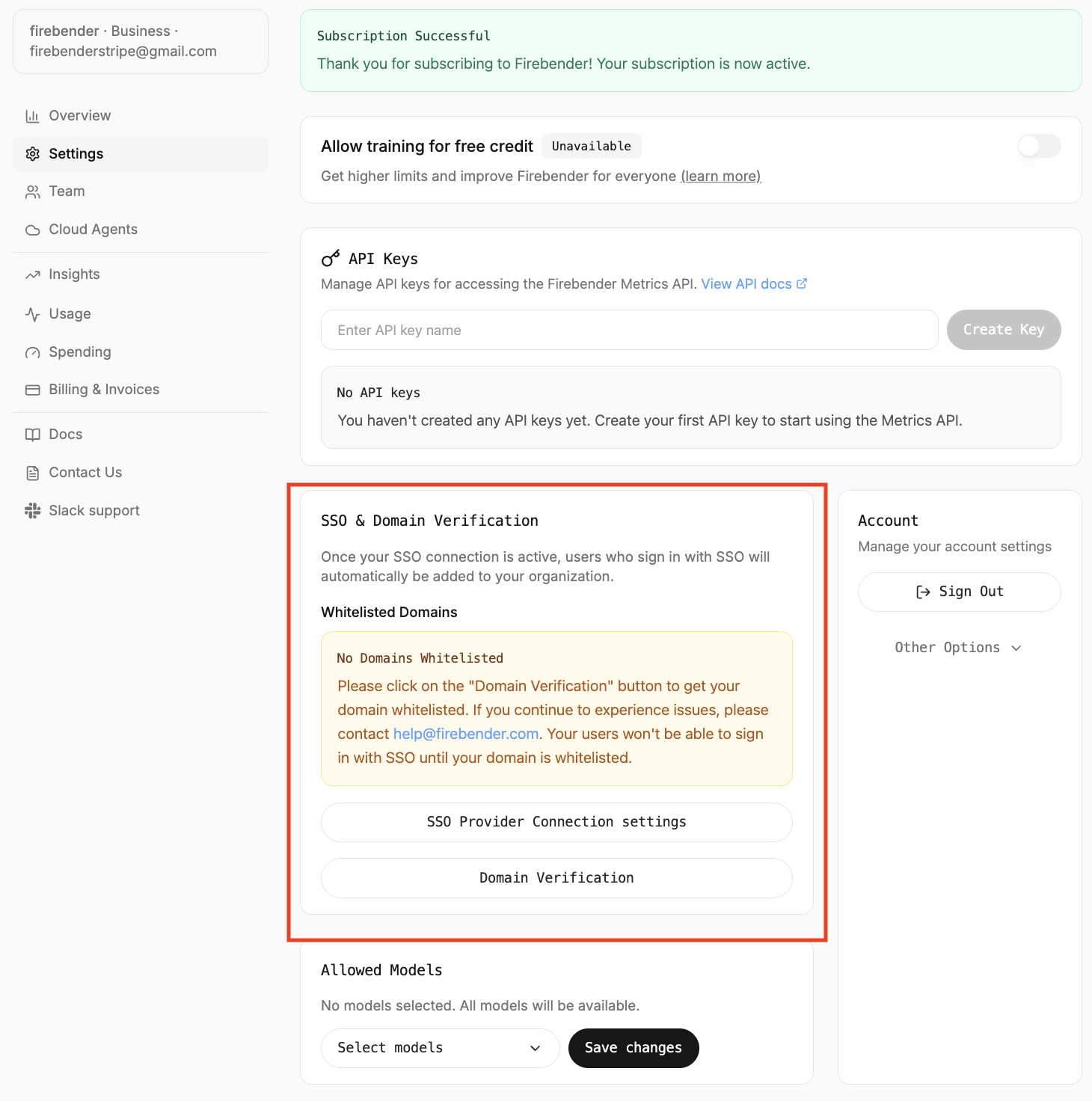 If you've enabled SSO, users who sign in with your SSO will automatically be added to your team without needing an invitation.
## Get Support
Create a shared Slack channel to get direct support from the Firebender engineering team.
If you've enabled SSO, users who sign in with your SSO will automatically be added to your team without needing an invitation.
## Get Support
Create a shared Slack channel to get direct support from the Firebender engineering team.
 ## FAQ
### How can I set up a team when I'm not going to use Firebender myself?
You can set yourself and members of your team to be **Unpaid Admins**.
This allows members of your team to administrate the team and its billing, without being charged for a Firebender subscription themselves.
Business plan teams always require at least one paid member. However, invoices for team changes are not billed immediately, so you can set up a team, change your own role and invite a team member without being charged.
## FAQ
### How can I set up a team when I'm not going to use Firebender myself?
You can set yourself and members of your team to be **Unpaid Admins**.
This allows members of your team to administrate the team and its billing, without being charged for a Firebender subscription themselves.
Business plan teams always require at least one paid member. However, invoices for team changes are not billed immediately, so you can set up a team, change your own role and invite a team member without being charged.