> ## Documentation Index
> Fetch the complete documentation index at: https://docs.firebender.com/llms.txt
> Use this file to discover all available pages before exploring further.
# Cloud Agents
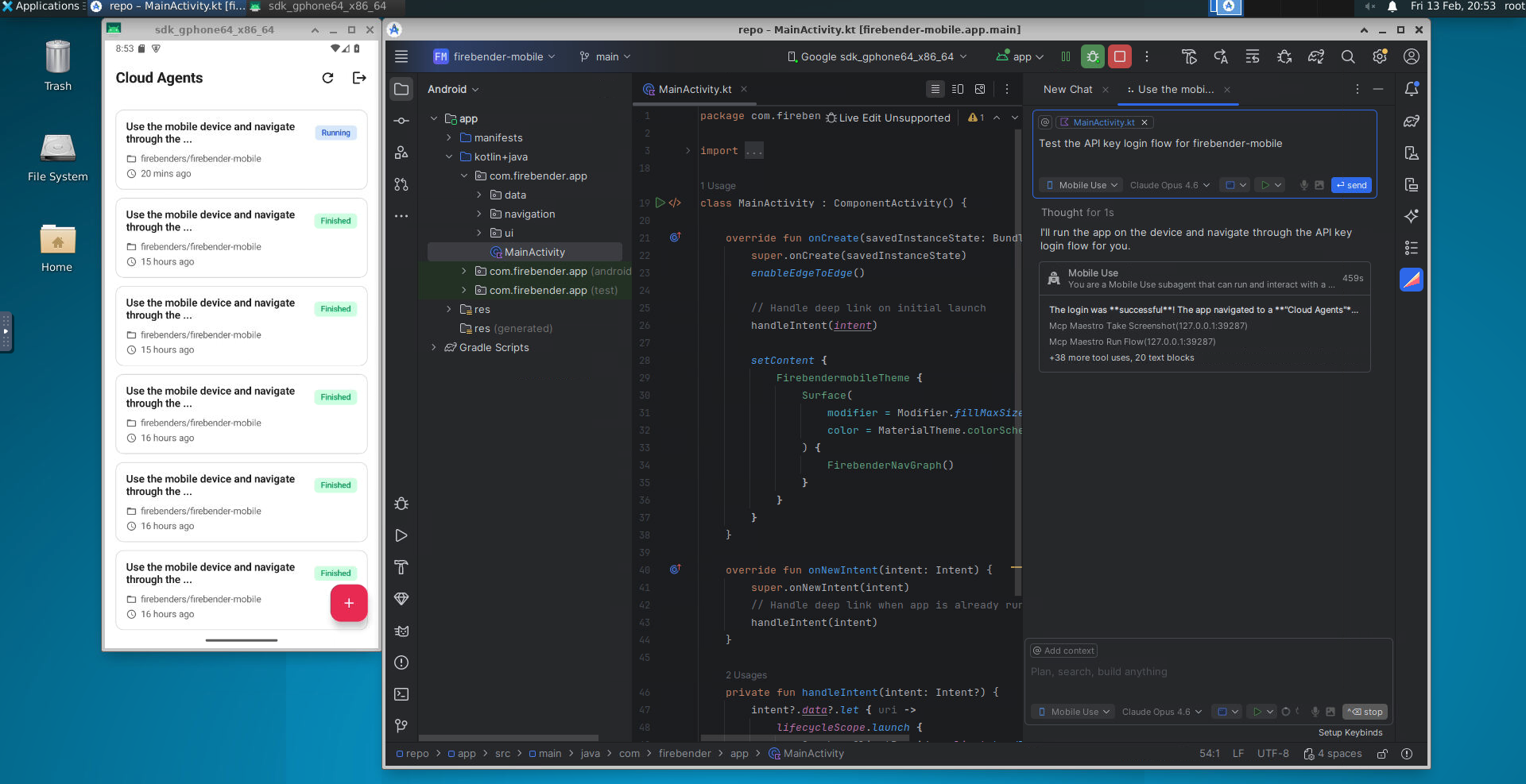 With Cloud Agents, spawn asynchronous agents that edit and run code in a remote Android Studio environment with a built-in Android emulator. View their status, send follow-ups, or take over anytime.
Cloud Agents are only available on [Teams and
Enterprise](/account/business/get-started) plans.
## How to Use
Launch Cloud Agents from GitHub using the `/firebender` slash command in any issue or pull request.
### GitHub
Once the Firebender GitHub App is installed, type `/firebender` in any issue or pull request comment to launch a Cloud Agent.
```
/firebender
Fix the crash when opening the settings screen.
```
The agent will clone your repo, work on the task, and push changes to a new branch. For issues, it automatically creates a pull request when finished. For PRs, it commits directly to the existing branch.
#### Modes
You can specify an agent mode using `mode=`:
```
/firebender mode=mobile_use
Test the login flow and verify the UI renders correctly.
```
The default mode is `write`. To use a different mode, pass `mode=` — for example, `mode=mobile_use`. See [Agent Modes](#agent-modes) for all available modes.
#### Follow-ups
If an agent is already running on an issue or PR, commenting `/firebender` again sends a follow-up instruction to the existing agent instead of creating a new one. If the agent has finished, a continuation agent is created on the same branch.
## Setup
Cloud Agents run on an isolated environment with Android Studio and an Android emulator. Agents have internet access and can install packages.
The setup process involves:
1. **Connect GitHub**: Link your GitHub account in your [Cloud Agent settings](https://firebender.com/settings?tab=cloud-agents)
2. **Environment Configuration**: Optionally add a `.firebender/environment.json` to your repo to customize the JDK, setup scripts, and run configuration
### GitHub Connection
Cloud Agents clone your repo from GitHub and work on a separate branch, pushing to your repo for easy handoff.
You will need read-write privileges to your repo (and any dependent repos or submodules). Grant access through the Firebender GitHub App in your [Cloud Agent settings](https://firebender.com/settings?tab=cloud-agents).
### Environment Configuration
Cloud Agents load an optional configuration file from your repository to customize the sandbox environment.
**File location:** `.firebender/environment.json` (repo root)
```json theme={null}
{
"jdk": { "version": "17.0.11-tem" },
"setup": { "script": "scripts/firebender-setup.sh" },
"run": { "configName": "app.application" }
}
```
| Field | Type | Description |
| ---------------- | ------ | ------------------------------------------------------------------------------------------------------------------------------------------------------------------------------------------- |
| `jdk.version` | string | SDKMAN JDK identifier (e.g. `17.0.11-tem`). If omitted, the default JDK in the base image is used. |
| `setup.script` | string | Repo-relative path to a setup script that runs after clone and before Android Studio starts. Use this to install extra dependencies or configure the environment. |
| `run.configName` | string | Android Studio run configuration to execute before the agent starts. Use this to specify which app the agent launches on the emulator. Only applies to `mobile_use` and `debug_auto` modes. |
### Environment Variables and Secrets
Cloud Agents need access to your environment variables and secrets (like API keys, signing configs, etc.) to run properly.
Configure secrets in your [Cloud Agent settings](https://firebender.com/settings?tab=cloud-agents):
* Add your secrets as key-value pairs
* All secrets are encrypted at rest
* Available to Cloud Agents as environment variables
* Shared across all Cloud Agents for your workspace/team
## Agent Modes
| Mode | Description |
| ------------ | ------------------------------------------------------------------------------------------------------------------------------------------------------ |
| `write` | Default mode. The agent reads and writes code to complete the task. |
| `read` | The agent can read and analyze code but does not make changes. |
| `mobile_use` | `write` mode with a remote Android emulator. The agent can interact with and test the running app. Records and uploads the emulator screen. |
| `debug_auto` | Like `mobile_use`, but the agent will also set breakpoints, test hypotheses, and use the emulator to fix bugs. Best for automated debugging workflows. |
In `mobile_use` and `debug_auto` modes, the agent can tap, swipe, type, and
take screenshots of your running app on the emulator. The emulator screen
recording is uploaded and available from the Firebender app.
## Verifying and Testing Changes
Before merging changes made by Cloud Agents, you'll want to verify they work correctly.
### Testing in the Cloud Instance
After a Cloud Agent has made changes, you can directly access the cloud instance to test:
* **SSH into the sandbox**: Access the running Daytona sandbox directly to run commands, check logs, and test functionality
* **VNC preview**: While a Cloud Agent is running, you can watch it work in real-time through a VNC URL. Interact with Android Studio and the emulator directly in your browser
## Pricing
Cloud Agents require [on-demand pricing](/account/business/usage-based-pricing) to be enabled. Cloud Agents are currently only available for teams.
## Security
Cloud Agents run in isolated sandbox environments powered by [Daytona.io](https://daytona.io). We never train on your code and only retain code for the duration of the active agent session.
What you should know:
* Grant read-write privileges to the Firebender GitHub App for repos you want to edit. We use this to clone the repo and make changes.
* Your code runs inside isolated VMs and is stored on VM disks only while the agent is accessible. Code and files are automatically deleted when the session ends.
* The agent has internet access.
* The agent auto-runs all terminal commands, letting it iterate on builds and tests. Auto-running introduces data exfiltration risk: attackers could execute prompt injection attacks, tricking the agent to upload code to malicious websites.
Learn more about [Cloud Agent security and privacy](/account/business/security).
How Cloud Agent sandboxes are isolated and secured
With Cloud Agents, spawn asynchronous agents that edit and run code in a remote Android Studio environment with a built-in Android emulator. View their status, send follow-ups, or take over anytime.
Cloud Agents are only available on [Teams and
Enterprise](/account/business/get-started) plans.
## How to Use
Launch Cloud Agents from GitHub using the `/firebender` slash command in any issue or pull request.
### GitHub
Once the Firebender GitHub App is installed, type `/firebender` in any issue or pull request comment to launch a Cloud Agent.
```
/firebender
Fix the crash when opening the settings screen.
```
The agent will clone your repo, work on the task, and push changes to a new branch. For issues, it automatically creates a pull request when finished. For PRs, it commits directly to the existing branch.
#### Modes
You can specify an agent mode using `mode=`:
```
/firebender mode=mobile_use
Test the login flow and verify the UI renders correctly.
```
The default mode is `write`. To use a different mode, pass `mode=` — for example, `mode=mobile_use`. See [Agent Modes](#agent-modes) for all available modes.
#### Follow-ups
If an agent is already running on an issue or PR, commenting `/firebender` again sends a follow-up instruction to the existing agent instead of creating a new one. If the agent has finished, a continuation agent is created on the same branch.
## Setup
Cloud Agents run on an isolated environment with Android Studio and an Android emulator. Agents have internet access and can install packages.
The setup process involves:
1. **Connect GitHub**: Link your GitHub account in your [Cloud Agent settings](https://firebender.com/settings?tab=cloud-agents)
2. **Environment Configuration**: Optionally add a `.firebender/environment.json` to your repo to customize the JDK, setup scripts, and run configuration
### GitHub Connection
Cloud Agents clone your repo from GitHub and work on a separate branch, pushing to your repo for easy handoff.
You will need read-write privileges to your repo (and any dependent repos or submodules). Grant access through the Firebender GitHub App in your [Cloud Agent settings](https://firebender.com/settings?tab=cloud-agents).
### Environment Configuration
Cloud Agents load an optional configuration file from your repository to customize the sandbox environment.
**File location:** `.firebender/environment.json` (repo root)
```json theme={null}
{
"jdk": { "version": "17.0.11-tem" },
"setup": { "script": "scripts/firebender-setup.sh" },
"run": { "configName": "app.application" }
}
```
| Field | Type | Description |
| ---------------- | ------ | ------------------------------------------------------------------------------------------------------------------------------------------------------------------------------------------- |
| `jdk.version` | string | SDKMAN JDK identifier (e.g. `17.0.11-tem`). If omitted, the default JDK in the base image is used. |
| `setup.script` | string | Repo-relative path to a setup script that runs after clone and before Android Studio starts. Use this to install extra dependencies or configure the environment. |
| `run.configName` | string | Android Studio run configuration to execute before the agent starts. Use this to specify which app the agent launches on the emulator. Only applies to `mobile_use` and `debug_auto` modes. |
### Environment Variables and Secrets
Cloud Agents need access to your environment variables and secrets (like API keys, signing configs, etc.) to run properly.
Configure secrets in your [Cloud Agent settings](https://firebender.com/settings?tab=cloud-agents):
* Add your secrets as key-value pairs
* All secrets are encrypted at rest
* Available to Cloud Agents as environment variables
* Shared across all Cloud Agents for your workspace/team
## Agent Modes
| Mode | Description |
| ------------ | ------------------------------------------------------------------------------------------------------------------------------------------------------ |
| `write` | Default mode. The agent reads and writes code to complete the task. |
| `read` | The agent can read and analyze code but does not make changes. |
| `mobile_use` | `write` mode with a remote Android emulator. The agent can interact with and test the running app. Records and uploads the emulator screen. |
| `debug_auto` | Like `mobile_use`, but the agent will also set breakpoints, test hypotheses, and use the emulator to fix bugs. Best for automated debugging workflows. |
In `mobile_use` and `debug_auto` modes, the agent can tap, swipe, type, and
take screenshots of your running app on the emulator. The emulator screen
recording is uploaded and available from the Firebender app.
## Verifying and Testing Changes
Before merging changes made by Cloud Agents, you'll want to verify they work correctly.
### Testing in the Cloud Instance
After a Cloud Agent has made changes, you can directly access the cloud instance to test:
* **SSH into the sandbox**: Access the running Daytona sandbox directly to run commands, check logs, and test functionality
* **VNC preview**: While a Cloud Agent is running, you can watch it work in real-time through a VNC URL. Interact with Android Studio and the emulator directly in your browser
## Pricing
Cloud Agents require [on-demand pricing](/account/business/usage-based-pricing) to be enabled. Cloud Agents are currently only available for teams.
## Security
Cloud Agents run in isolated sandbox environments powered by [Daytona.io](https://daytona.io). We never train on your code and only retain code for the duration of the active agent session.
What you should know:
* Grant read-write privileges to the Firebender GitHub App for repos you want to edit. We use this to clone the repo and make changes.
* Your code runs inside isolated VMs and is stored on VM disks only while the agent is accessible. Code and files are automatically deleted when the session ends.
* The agent has internet access.
* The agent auto-runs all terminal commands, letting it iterate on builds and tests. Auto-running introduces data exfiltration risk: attackers could execute prompt injection attacks, tricking the agent to upload code to malicious websites.
Learn more about [Cloud Agent security and privacy](/account/business/security).
How Cloud Agent sandboxes are isolated and secured