

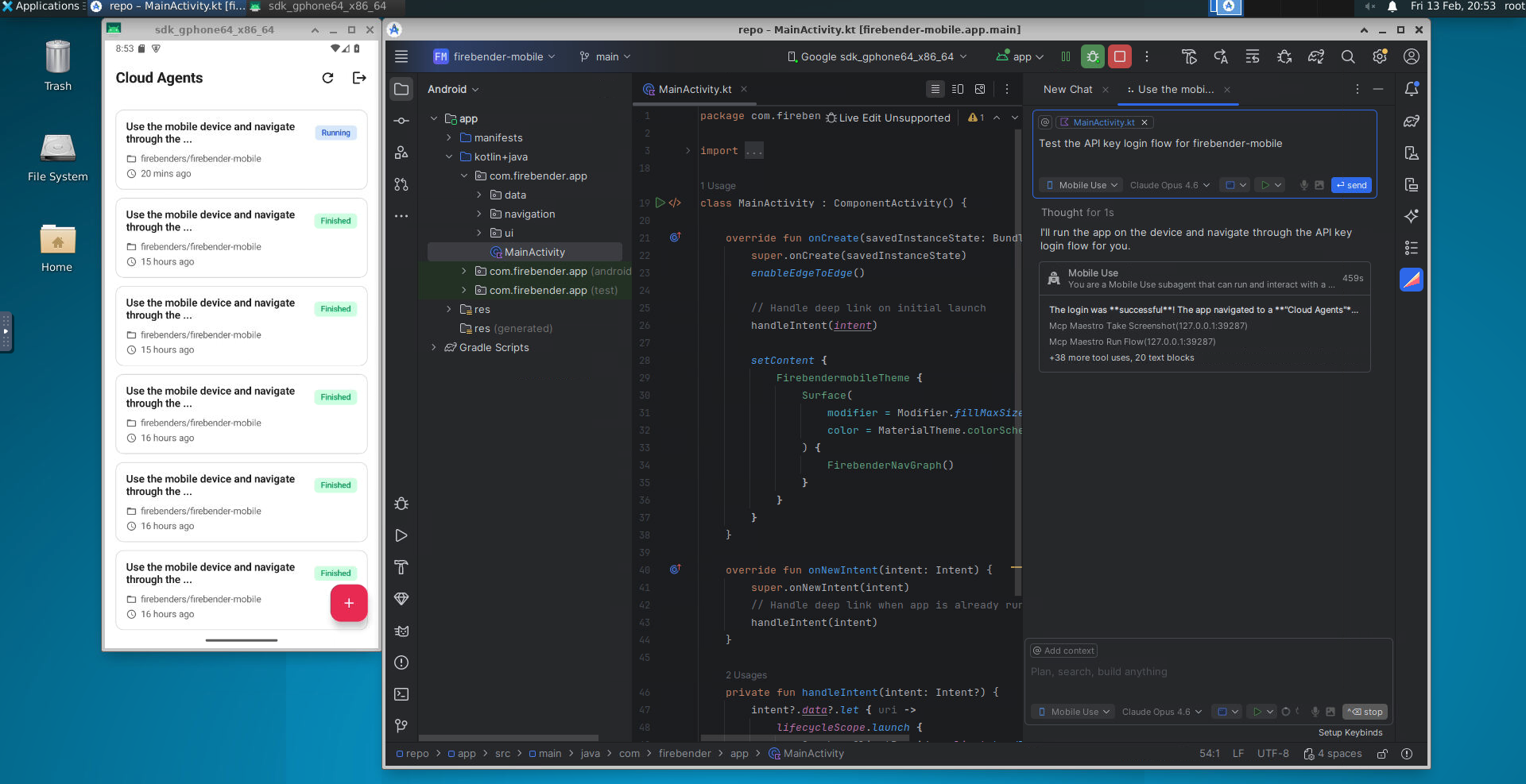
How to Use
Launch Cloud Agents from GitHub using the/firebender slash command in any issue or pull request.
GitHub
Once the Firebender GitHub App is installed, type/firebender in any issue or pull request comment to launch a Cloud Agent.
Modes
You can specify an agent mode usingmode=:
write. To use a different mode, pass mode=<mode> — for example, mode=mobile_use. See Agent Modes for all available modes.
Follow-ups
If an agent is already running on an issue or PR, commenting/firebender again sends a follow-up instruction to the existing agent instead of creating a new one. If the agent has finished, a continuation agent is created on the same branch.
Setup
Cloud Agents run on an isolated environment with Android Studio and an Android emulator. Agents have internet access and can install packages. The setup process involves:- Connect GitHub: Link your GitHub account in your Cloud Agent settings
- Environment Configuration: Optionally add a
.firebender/environment.jsonto your repo to customize the JDK, setup scripts, and run configuration
GitHub Connection
Cloud Agents clone your repo from GitHub and work on a separate branch, pushing to your repo for easy handoff. You will need read-write privileges to your repo (and any dependent repos or submodules). Grant access through the Firebender GitHub App in your Cloud Agent settings.Environment Configuration
Cloud Agents load an optional configuration file from your repository to customize the sandbox environment. File location:.firebender/environment.json (repo root)
Environment Variables and Secrets
Cloud Agents need access to your environment variables and secrets (like API keys, signing configs, etc.) to run properly. Configure secrets in your Cloud Agent settings:- Add your secrets as key-value pairs
- All secrets are encrypted at rest
- Available to Cloud Agents as environment variables
- Shared across all Cloud Agents for your workspace/team
Agent Modes
In
mobile_use and debug_auto modes, the agent can tap, swipe, type, and
take screenshots of your running app on the emulator. The emulator screen
recording is uploaded and available from the Firebender app.Verifying and Testing Changes
Before merging changes made by Cloud Agents, you’ll want to verify they work correctly.Testing in the Cloud Instance
After a Cloud Agent has made changes, you can directly access the cloud instance to test:- SSH into the sandbox: Access the running Daytona sandbox directly to run commands, check logs, and test functionality
- VNC preview: While a Cloud Agent is running, you can watch it work in real-time through a VNC URL. Interact with Android Studio and the emulator directly in your browser
Pricing
Cloud Agents require on-demand pricing to be enabled. Cloud Agents are currently only available for teams.Security
Cloud Agents run in isolated sandbox environments powered by Daytona.io. We never train on your code and only retain code for the duration of the active agent session. What you should know:- Grant read-write privileges to the Firebender GitHub App for repos you want to edit. We use this to clone the repo and make changes.
- Your code runs inside isolated VMs and is stored on VM disks only while the agent is accessible. Code and files are automatically deleted when the session ends.
- The agent has internet access.
- The agent auto-runs all terminal commands, letting it iterate on builds and tests. Auto-running introduces data exfiltration risk: attackers could execute prompt injection attacks, tricking the agent to upload code to malicious websites.
Security & Privacy
How Cloud Agent sandboxes are isolated and secured